
How to Transfer Demo Saves in Our Life: Now & Forever
Step 1 demo saves carry over to Early Access in Our Life: Now & Forever, while Step 2 demo and beta saves do not. See desktop, Android, and Sync steps.
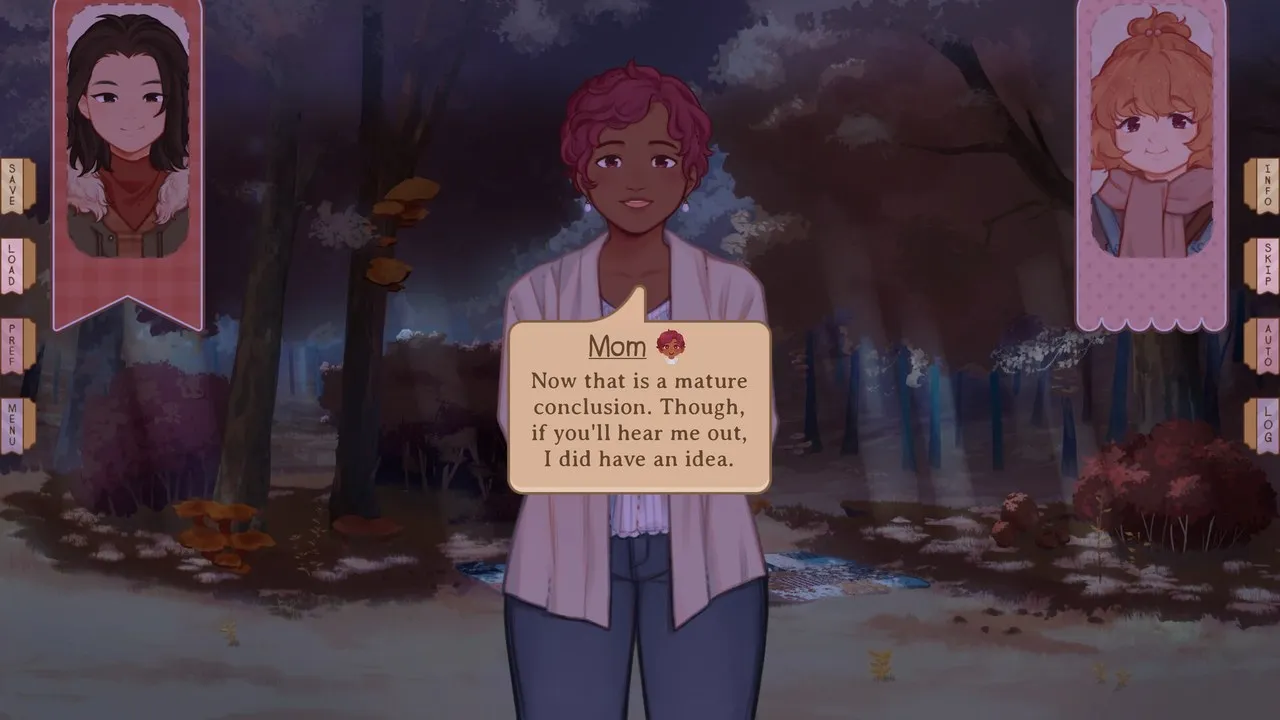
Your Step 1 public demo saves are built to carry over in Our Life: Now & Forever, so players who spent hours customizing a protagonist and shaping childhood memories in Golden Grove with Qiu Lin and Tamarack Baumann do not have to restart from scratch for Early Access. However, Step 2 public demo saves and Patreon beta saves do not transfer into the main public progression, and Android players can accidentally erase local progress if they uninstall an older APK before backing it up.
As of 2026-11-28, Early Access version 0.1.7.2—which launched on November 27, 2026 with Steps 1 and 2—is available on Windows, macOS, Linux, and Android through the official itch.io page and on PC via the Steam store page. Below are the verified compatibility limits, platform steps, and upgrade pitfalls confirmed by developer GB Patch Games.
Which Demo and Beta Saves Carry Over?
In an official itch.io save compatibility note relayed from the lead developer, GB Patch Games laid out clear rules separating Step 1 public saves from Step 2 demo previews and Patreon beta builds. Not every file in your load menu will open cleanly after upgrading, even if it still appears on your machine.
| Save Source | Loads in Newer Public / Early Access Builds? | Verified Reason & Limits |
|---|---|---|
| Public Demo (Step 1) | Yes | Designed to remain backwards compatible across newer demos, betas, and Early Access progression. |
| Public Demo (Step 2) | No (public demo only) | The public demo omitted the Step 1 ending, which is required to advance into Step 2 in the full release. |
| Patreon Beta Builds | No (on public builds) | Beta saves do not load in public builds; keep beta runs separate when planning a beta save transfer. |
Preview Build (v1.5.0) |
Yes (to public v1.5.1) |
Preview saves carried forward to the matching public demo patch. |
The biggest surprise for returning players is usually Step 2. Because the public demo only offered a standalone glimpse of the teenage time-skip without playing through the Step 1 finale, any save created inside demo Step 2 lacks the required progression flags for Early Access Step 2.
If your latest slot is stuck in demo Step 2, load an earlier Step 1 save instead so you can play through the Step 1 ending cleanly. Players who prefer starting a fresh Early Access slot while keeping specific childhood dynamics can use our guide on how to replay choices to recreate their preferred routes quickly.
How to Transfer Saves on Desktop (Windows, macOS, and Linux)
On desktop systems, transferring demo saves in Our Life: Now & Forever does not require manual file conversion. GB Patch Games confirmed that previous desktop demo saves carry over automatically when you launch a newer build on the same computer, as long as you do not manually wipe your local save directory.
Follow these steps to upgrade cleanly on Windows, macOS, or Linux:
- Back up your existing save directory first. Before downloading or doing a clean reinstall, check your save file location and copy the folder somewhere safe so a failed update cannot touch your Step 1 slots.
- Download the Early Access build, not the Demo. On Steam, confirm you are installing the Early Access release from the Steam store page rather than redownloading the older demo listing. On itch.io, grab Early Access
v0.1.7.2from the official itch.io page; Apple users upgrading through itch.io can follow our Mac download guide. - Verify the version number in-game. Launch the client and check the bottom-left corner of the main menu. As of 2026-11-28, GB Patch Games instructs players to confirm it reads
v0.1.7.2. - Watch out for Windows antivirus false positives. When unzipping the itch.io desktop build, security scanners occasionally quarantine files because the game’s underlying Python engine can trigger false flags at random. GB Patch Games recommends telling your scanner to trust the application—or pausing scanning strictly during installation—rather than letting it strip files out of the folder.
- Reinstall itch.io DLC files into the new folder. Players on itch.io note that PC save data shares automatically between Steam and itch.io installations on the same machine, yet paid expansions do not sync across storefronts (see our Steam vs. itch.io comparison). If you bought Step expansions on itch.io, you must move
Step1DLC.rpaandStep2DLC.rpainto thegamefolder inside your new base game directory—follow our itch.io DLC installation guide before loading your Step 1 save.

Our Life: Now & Forever Demo Gameplay | First Impressions
Transferring Saves on Android and Across Devices with Sync
Android handles upgrades far more strictly than PC. According to GB Patch Games’ developer save guidelines, local Android saves carry over only if you install the updated APK directly on top of the existing app. Uninstalling the old demo first deletes all local save data permanently—a mistake multiple Android players on itch.io ran into during the Early Access launch, losing over 20 hours of demo playtime.
That creates a tricky catch on v0.1.7.2: several Android commenters reported seeing "App not installed as package appears to be invalid" when trying to install the Early Access APK over an older version. Before you uninstall an older Android build to clear a package conflict—or whenever you want to move a save between PC and mobile—use the game’s built-in Sync tool.
Open your older build, head to the Save/Load screen, and select the Sync button. GB Patch Games confirmed this generates a transfer code (Sync ID) that lets you pull your saves onto another device or restore them after a clean install; see our Sync ID walkthrough for the full code transfer process.
| Platform & Upgrade Scenario | Default Save Behavior | Recommended Action |
|---|---|---|
| Windows / macOS / Linux (same PC) | Step 1 demo saves carry over automatically | Confirm v0.1.7.2 in the bottom-left corner; back up local files first. |
| Steam and itch.io on the same PC | Saves share automatically; DLCs do not | Keep expansions on one storefront or copy .rpa files into game/. |
| Android (install APK over old app) | Carries over if installation succeeds | Generate a Sync code beforehand in case Android throws a package error. |
| Android (uninstall then reinstall) | Wipes all local saves | Use the Sync button on the Save/Load screen before uninstalling. |
| Cross-device (PC to/from Android) | No automatic cloud sync | Transfer saves manually using the Sync code on the Save/Load screen. |
Fixing Common Upgrade Pitfalls After Transferring
Even when your Step 1 save loads, a few launch-week issues reported on the itch.io comment board can make it look like your upgrade failed:
- Only old Step 1 Moments appear on Steam: One Steam player who started a fresh Early Access run only saw the older demo Moments—without even the locked DLC icons—because they accidentally downloaded the Steam Demo instead of the Early Access client. Double-check the
v0.1.7.2stamp in the bottom-left corner. - Game refuses to open after updating or adding DLC: If Early Access fails to launch even after placing your
.rpafiles in thegamefolder, GB Patch Games’ first recommended fix is a clean reinstall of the game folder—delete the extracted app files and download fresh. On Android, always grab a Sync code before doing a clean reinstall. - Step 1 or Step 2 Moments disappear on Android: Several Android players on
v0.1.7.2reported that base Moments vanished from the selection screen after upgrading, leaving only DLC icons visible. While GB Patch Games investigates, the developer suggests toggling dragging on and pressing the reset positions button in the top-right corner; a few players noted that fix did not work on every device, so check the itch.io page for hotfixes. - Silent crashes on older Android phones: If your transferred save loads smoothly at first and then the app closes with no error message, GB Patch Games advises opening Preferences from the main menu, turning off all animations and transitions, and setting text speed to max to ease device load.
FAQ
What is the Sync ID on the save/load screen?
The Sync button on the Save/Load screen generates a Sync ID code that transfers your save files between devices. GB Patch Games highlighted it as the built-in way to move progress across platforms without manually copying files, and it also serves as a safeguard if you need to uninstall an older Android build before installing Early Access.
Will uninstalling the old Android version delete my demo progress?
Yes. GB Patch Games confirmed that Android saves only carry over when you install the new APK directly over the previous version. If you uninstall the old app first—such as when troubleshooting a package error—your local saves are erased unless you already exported a transfer code using the Save/Load Sync button.
Why do my saves show up on Steam and itch.io, but my DLCs do not?
PC players on itch.io report that save progress shares between Steam and itch.io builds installed on the same computer, while DLC packs remain tied to the storefront where you downloaded them. To use itch.io expansions on PC, place Step1DLC.rpa and Step2DLC.rpa directly inside the game folder of your itch.io base game installation.
Related Articles
platforms
How to Download Our Life: Now & Forever on Mac (macOS)
Download Our Life: Now & Forever free on macOS via itch.io (Early Access v0.1.7.2, 1.2 GB). Check Steam status, DLC folder setup, and Mac launch fixes.
platforms
Is Our Life: Now & Forever on iOS? iPhone & iPad Status
Our Life: Now & Forever is not listed for iOS, iPhone, or iPad as of 2026-11-28. See official Windows, macOS, Linux, and Android availability.
fixes
Our Life: Now & Forever Crash Fix: Launch & Error Guide
Fix Our Life: Now & Forever crashes, launch blocks, script errors, and Android freezes with verified GB Patch Games fixes for PC and mobile.
Was this helpful?
Thanks for the feedback!